
Google Pics — Google Workspace’s AI Image Editor, Built on Nano Banana
Google Pics is the AI image creation and editing tool inside Google Workspace, built on Google’s Nano Banana model and generally available since 1 September 2026. It opens in a browser at pics.new, the same pattern as docs.new, and Google’s own announcement describes it as both a standalone product and an editor built directly into Workspace apps.
It is not Google Photos, and it is not a rename of Photos either. Photos stores and organises the pictures you already took; Pics makes and edits images for work — a poster, a social post, a mockup — and the two products do not touch each other’s data or job.
What Google Pics is
Definition and timeline
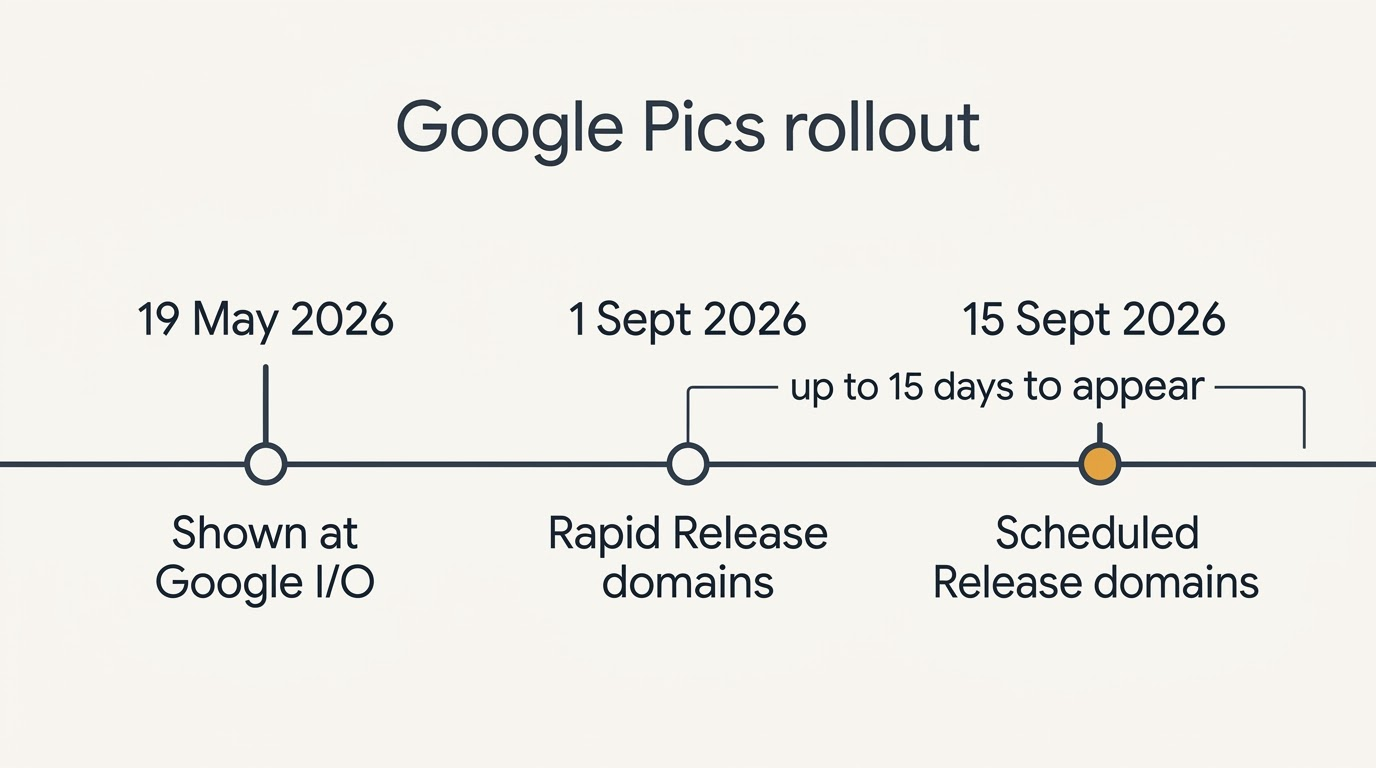
Google showed Pics at I/O on 19 May 2026, then ran it as a Trusted Tester program and through Workspace Experiments over the summer. General availability arrived on 1 September 2026, announced in a blog.google post by Meg Whittenberger. It is both a standalone product at pics.new and an editor embedded inside Workspace apps, so the same tool shows up whether you go looking for it or simply click an image where you already work.
The model underneath
Google’s own wording is careful: Pics is built on “our Nano Banana image generation and editing model.” Several outlets describe the launch build as Nano Banana 2, pointing to stronger text rendering and more real-world knowledge in the outputs — but that label is press attribution, not a specification Google has published anywhere in its own material. Treat any version number attached to Pics as reporting, not fact, until Google states one itself.
What you can do with it
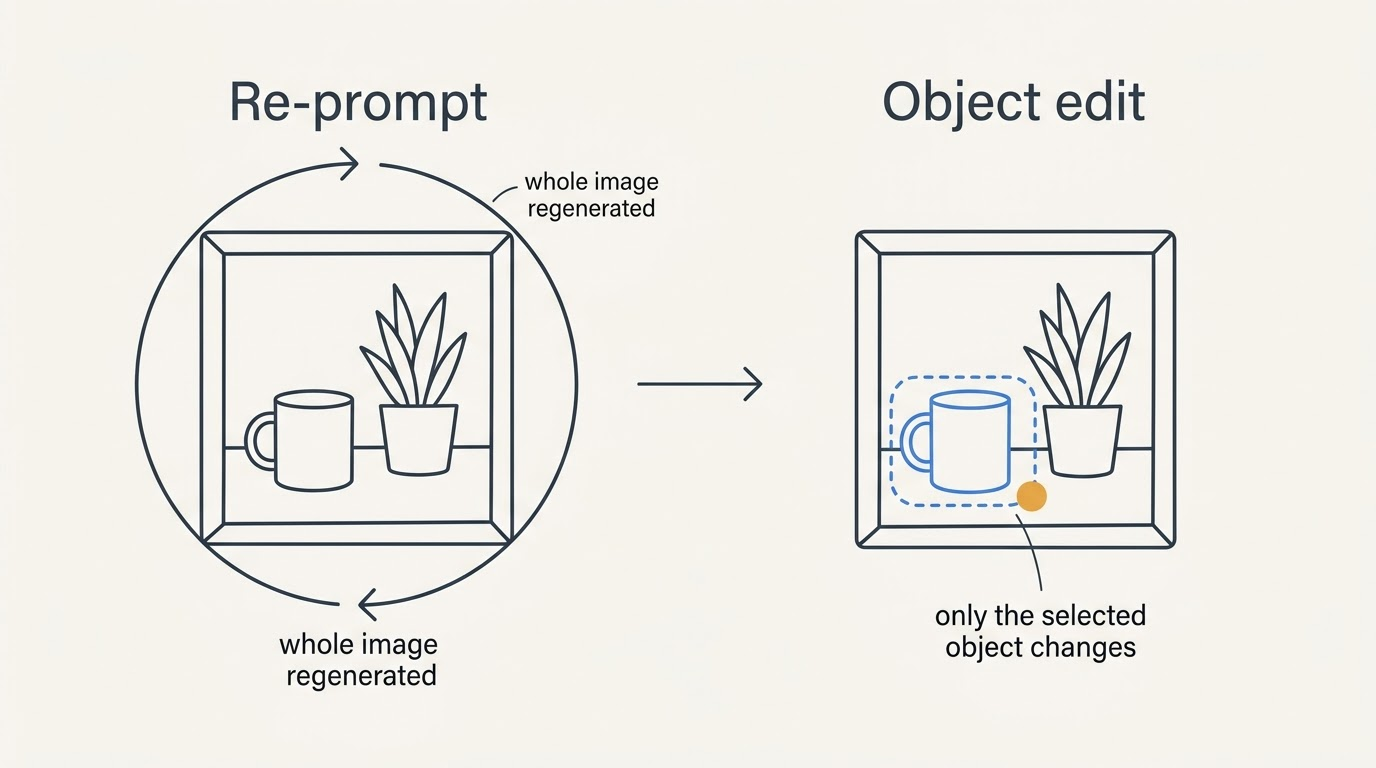
Isolate an object and change only that. Object segmentation lets you select one element in an image and transform it without touching the rest of the frame. You can also leave a text comment on a specific area to request a targeted change, and run several such edits in one pass — Google’s own pitch is that this ends “prompt-and-pray,” where a wrong detail means regenerating the whole picture.
Edit and translate text inside the image. A caption baked into a picture can be changed, reformatted or translated without breaking the layout or swapping the font. One finished design can be rolled out across languages instead of being rebuilt for each one.
Get several options from one prompt. Multiple generations come back from a single description, so picking a direction does not cost a new request.
Work on an image with other people. A Pics creation can be shared, and a team can edit the same image together, with the file living in Drive alongside the rest of a project.
Crop, upscale, and roll back. Presets cover web, social, print and digital formats, upscaling reaches 2K and 4K, and version history lets you step back through earlier edits.
Import from where the source already sits. Pics accepts uploads from your computer, from Google Drive, and from Google Photos, so an existing snapshot can become the starting point for an edit rather than a fresh generation. The full breakdown of every capability is on the features page.
Where to open Google Pics
- Go to pics.new — it opens Pics as a standalone browser app, the same pattern docs.new uses for a blank document.
- In Google Docs, click an image inside a document and the Pics editor opens as an overlay, in place, without switching tabs.
- In Google Slides, the same overlay opens for any image inside a deck.
- In Google Drive, one-click editing of stored images was promised “in the coming weeks” after 1 September 2026 — treat it as pending rather than shipped.
The Workspace integration guide and the Docs walkthrough cover both the standalone and embedded routes in more detail.
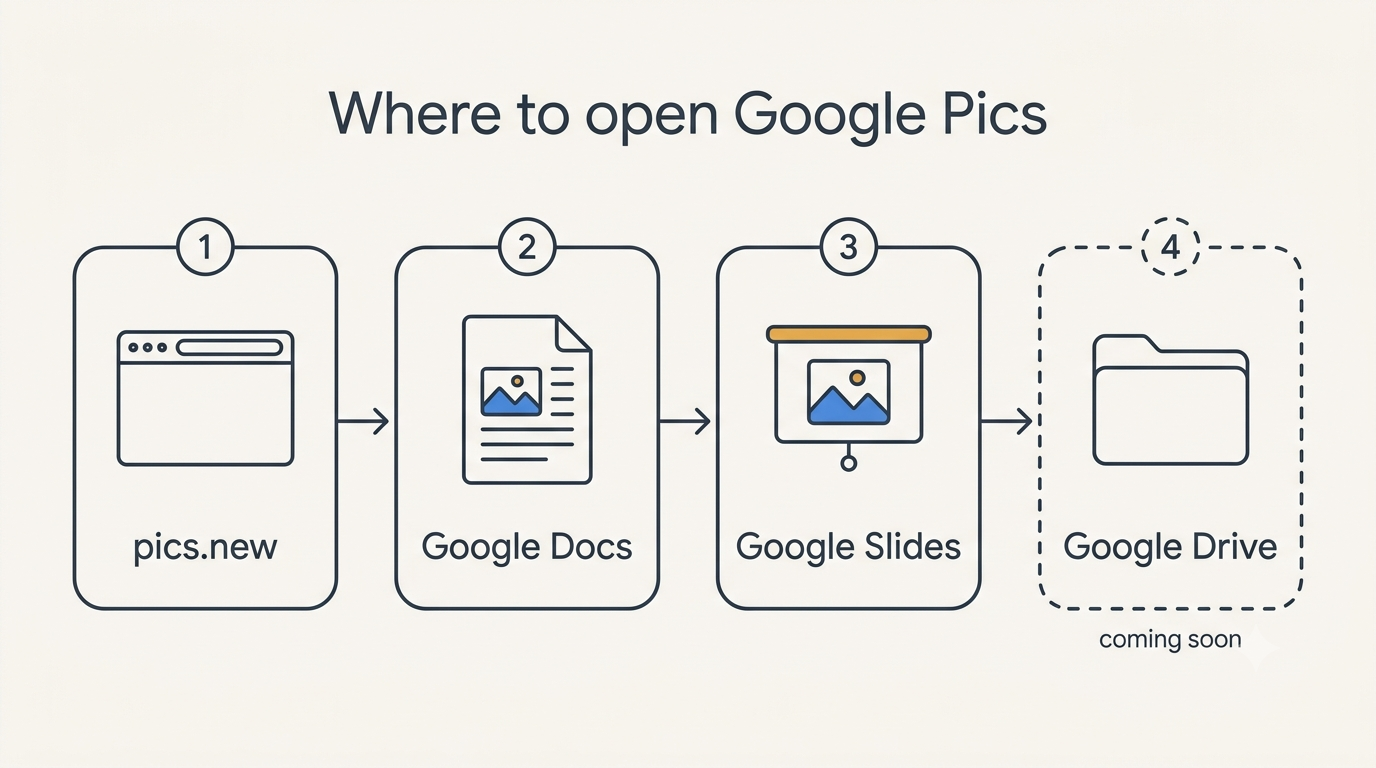
Whichever door you use, it is the same editor and the same file. An image started at pics.new can be finished inside a slide, because both routes read and write the same copy in Drive.
Who gets access and what it costs
Access rides on an existing subscription rather than a Pics-specific price. On personal accounts that means Google AI Pro or Google AI Ultra; on Workspace it means one of several business plans.
| Account type | Plans that include Google Pics |
|---|---|
| Personal | Google AI Pro, Google AI Ultra |
| Workspace business | Business Standard, Business Plus, Enterprise Standard, Enterprise Plus |
| Add-on | AI Expanded Access |
| Education | Google AI Pro for Education |
| Not included | Business Starter |
There is no separate price for Pics itself — it comes bundled with the subscription. The announcement pages do not print exact plan prices either; those tables load dynamically on Google’s AI plans page, so check there or on your Workspace plan page rather than trusting a number quoted secondhand. No free tier is listed. Google has not said a free tier will never exist — it simply is not on the current plan list. Plan comparisons live on pricing and access.
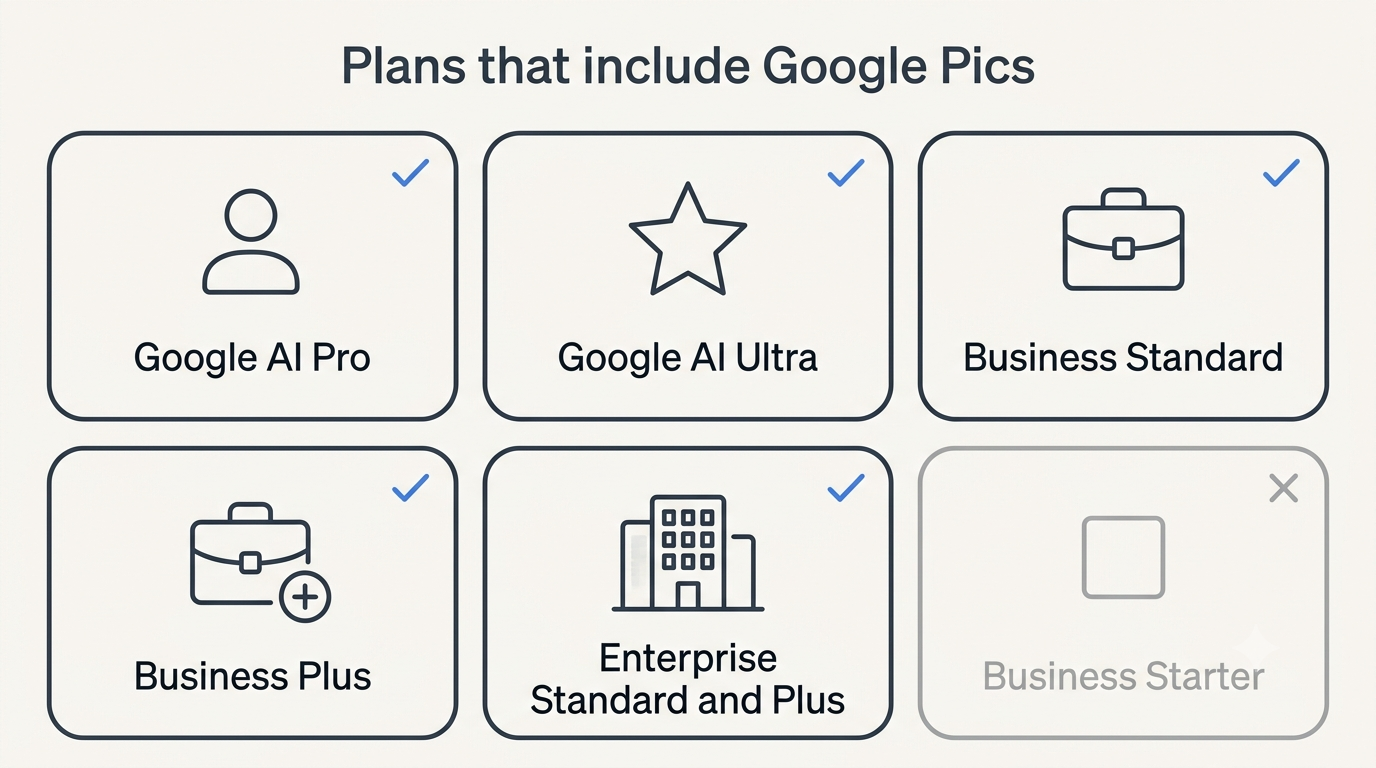
That list is what Google publishes today, not a promise about tomorrow. If your plan is missing from it, that is the current answer rather than a permanent one — and it is worth re-checking after any plan change on your account.
Why you may not have it yet
Rollout is staged, not instant, even for a qualifying plan. Rapid Release domains started receiving Pics on 1 September 2026, Scheduled Release domains followed on 15 September 2026, and in both cases Google allows up to fifteen days for full visibility across a domain.
For Workspace accounts, Pics is on by default: an administrator has to switch it off deliberately, at the domain, organisational-unit or group level, per the rollout notes on Workspace Updates. So if the plan is right and Pics is still missing, either the staged rollout has not reached that domain yet, or an administrator turned it off. The access page walks through both cases.
Google Pics vs Google Photos
The two products share a name and nothing else.
| Aspect | Google Pics | Google Photos |
|---|---|---|
| Purpose | Create and edit images for work | Store and organise personal photos |
| Where it lives | Workspace, pics.new, Docs and Slides | The Photos app and photos.google.com |
| What it does to an image | Generates or edits it | Catalogues and backs it up |
| Who pays | Google AI Pro/Ultra, or a qualifying Workspace plan | A Google account with Google One storage |
Google Pics includes a suite of fine-tuned editing capabilities that let you generate images and make precise edits rather than starting from scratch.
Meg Whittenberger, Google
Pics does not change anything about how Photos works, and it does not add the privacy controls some people had hoped a new Google image product would bring. The full side-by-side is on Pics vs Google Photos.
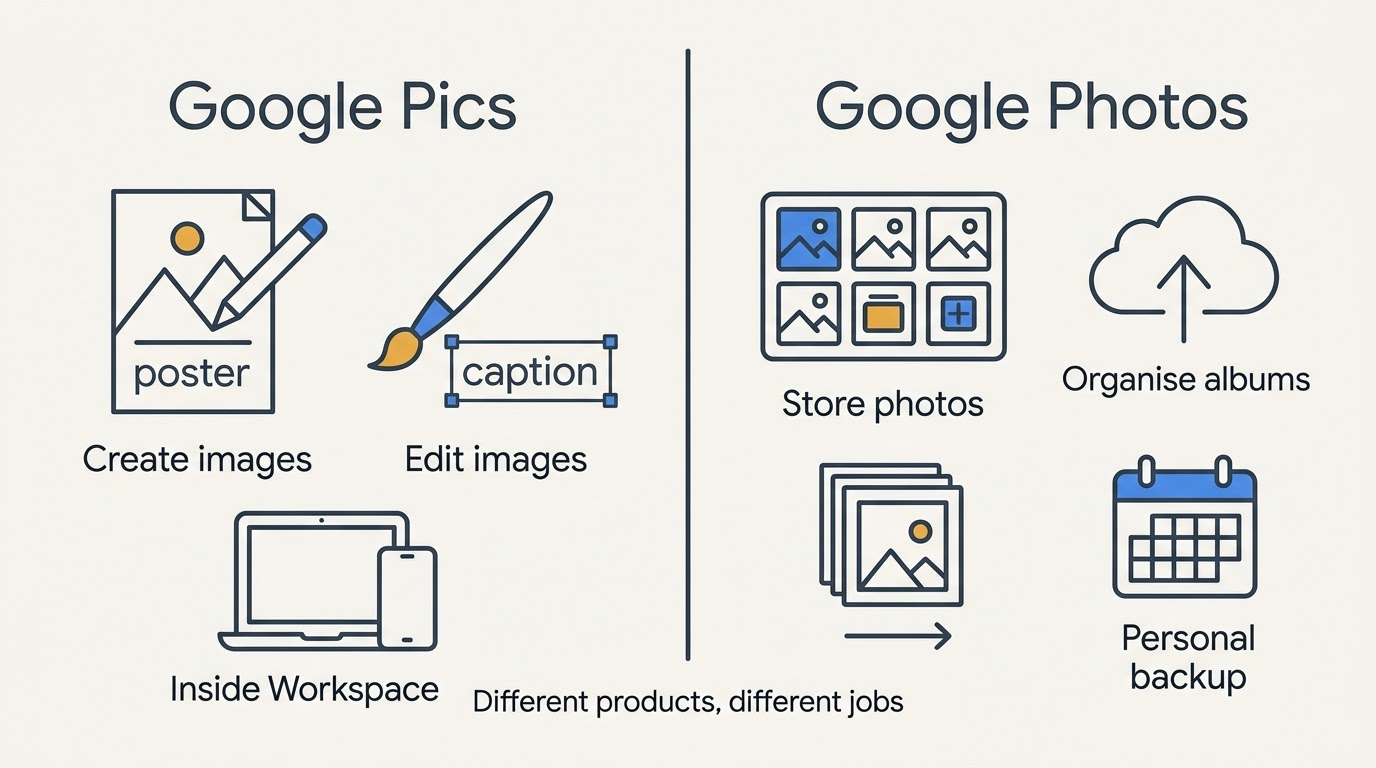
The naming is the only thing the two share, and it is the reason searches for Pics still surface Photos. Knowing which product you actually need saves the detour.
Google Pics vs image generation in Gemini
Both run on the same model family, so the difference is workflow rather than output quality. In Gemini, you write a prompt and, if the result is wrong, you regenerate the whole picture and start again. In Pics, you edit the picture you already have — one object, one region, one caption — with version history, collaboration and Drive storage built around the process instead of a single throwaway result.
That positioning matters for who Google is aiming at. The product is pitched against design tools like Canva and Adobe Express, not against chatbots, which is why the feature set leans toward finishing a file rather than starting a conversation. More on the practical differences is on the features page.
Limits, languages and countries
According to Google’s help documentation, Pics is available in every country and region where Google Workspace accounts operate, with one exception: personal accounts in Germany. Generation and editing support around 30 languages.
On quotas, the honest answer is that Google has not published numbers. What is known: generative features carry limits, high-resolution downloads consume that allowance faster than standard ones, and expanded access to generative features runs through 28 February 2027, after which limits may tighten — with advance notice, per Google’s own language. Guessing a specific number would be inventing a fact Google has not stated; the FAQ collects the short version of each open question.
How to start in five steps
- Confirm your plan qualifies against the table above.
- Open pics.new in the browser where you’re signed into that account.
- Describe the image you want and pick from the several generations returned.
- Refine the result by selecting an object or a text area instead of re-prompting from scratch.
- Share the result with a link, or drop it directly into a Google Doc or Slide.
Each step is expanded, with interface specifics, on how to use Google Pics.
Official sources
- Try Google Pics: Easy image creation and editing in Google Workspace
- Google Pics brings pro-level AI image creation and editing to Google Workspace
- Google Workspace Updates: rollout schedule and admin controls
- Google Docs Editors Help: Google Pics availability
- Google AI plans
- pics.new